Help Article
Form Designer - Expression Builder

Purpose
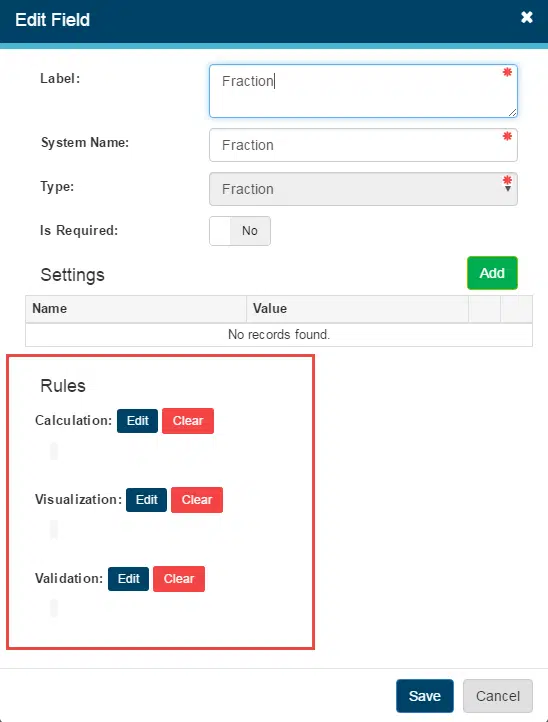
The Expression Builder allows you to create calculations, visualization rules, and validation messages for fields. You can access it when adding a new field or editing an existing field in the Form Designer.


At the bottom of the screen, you can choose to add or edit a calculation, visualization rule, or validation message, though some options may be unavailable depending on the field type. For Integrated Test forms, most settings are locked, but in some cases, you can still manage calculation expressions and visualization rules.
Form Rules
You can apply several types of Rules to your form from this screen:
Calculation
Calculations allow you to create fields that derive values using the Expression Builder, combining functions with arithmetic or logical operators. Fields calculated from an expression are automatically hidden from users during data entry.
Visualization
Visualization rules control a field’s visibility based on defined data conditions. These rules are built using the Expression Builder, allowing fields to appear or hide dynamically depending on the data entered.
Validation
Validation rules ensure that data entered into a field meets specific conditions, such as a number falling within a defined range. Users can choose whether a rule prevents save or allows save. If a condition is true, a red message appears for “Prevent Save” or a blue message appears for “Allow Save.” Validation rules must be used with the Validation Message property to define the message shown to users. Fields on a form can be referenced in rules using placeholder variables enclosed in double curly brackets (e.g., {{CGMLowerSpecifiedSlumpLimit}}).
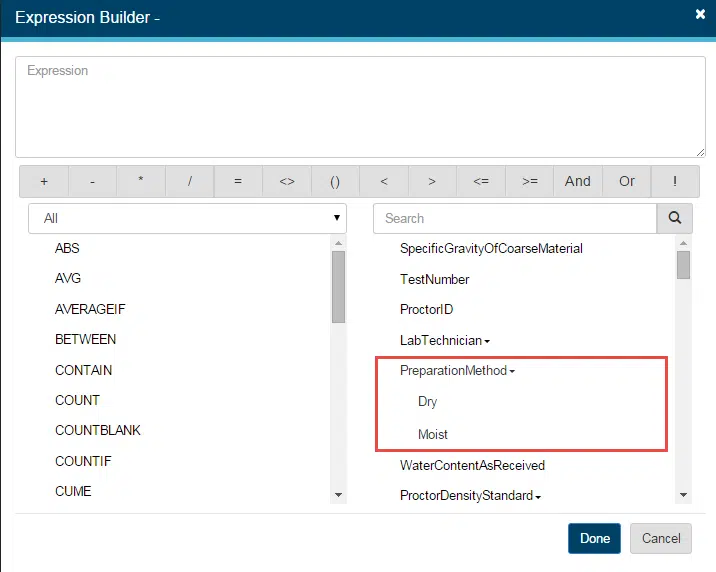
Expression Builder View

- Expression builder
- Available fields for selection
- Fields can be sorted so it is easier to find a field you are looking for - sort button in toolbar
- Arithmetic and logical operators
- Available functions
- Grouped by Type (math, logical, date / time, text, database) in the pick list above the list of functions
Pick List and Multiple Choice fields will display the available options for that field under the field name in the field list.
Functions
When you insert a function in the Expression Builder, guidance is provided on how the function must be structured. As you type, the system offers an auto-complete list of functions and field names to help streamline rule creation and ensure correct syntax.
| Function | Argument | Description |
| ABS | (Value) | Returns the absolute value of a number. ABS(-3) = 3 |
| ACOS | (Value, Measurement) | Returns the ARCCOSINE or Inverse COSINE of the VALUE in DGREES or RADIANS. ACOS(Number,"DEGREES") ACOS(Number,"RADIANS") |
| AVG | (Value1, Value2,…) | Returns the average of a list of numbers. AVG(NumberOutOfGrid, Grid.Number) |
| AVERAGEIF | (Condition, Value1, Value2,...) | Returns the average of all numbers in a range of values, based on a given criteria. AVG(">10", NumberOutOfGrid, Grid.Number) - will return the average of the numbers bigger than 10 |
| BETWEEN | (Value, Lower Value, Higher Value) | Returns true if given value is between two numbers (including negative numbers). Between(Number, 0, 10) - If set as Visualization rule, the number will be visible only if field Number is between 0 and 10 (including 0 and 10) |
| CONCATENATE | (Value1, Value2,...) | Joins two or more fields values / values into one string. CONCATENATE("Agile ","Frameworks") -will return Agile Frameworks |
| CONTAIN | (Field, Value) | Use this function to evaluate selected items in a pick list or multi-select field. For example, CONTAIN(PickList, "Pass"). The equals sign should not be used when evaluating pick list or multi-select field values in an expression. If you want your fields to be visible when two options are selected(available only in Multilist) you can combine two CONTAIN function, or any other: CONTAIN(MultiList, "Option 1") AND CONTAIN(MultiList, "Option 2") OR CONTAIN(MultiList, "Option 3") Every possible logical operators can be applied and if you want to change the priority just add parenthesis where necessary: CONTAIN(MultiList, "Option 1") AND (CONTAIN(MultiList, "Option 2") OR CONTAIN(MultiList, "Option 3")) |
| COS / ACOS | (Value, Measurement) | Returns the COS / ACOS of an input number expressed in degrees or radians. The Measurement parameter is defined as "DEGREES" or "RADIANS" depending on the format of the Value input argument. COS(Number,"DEGREES") COS(Number,"RADIANS") ACOS(Number,"DEGREES") ACOS(Number,"RADIANS") |
| COUNT | (Value1, Value2,...) | Returns the number of arguments. COUNT(Grid.Number) - will return the number of rows in the grid, where Number field has value |
| COUNTBLANK | (Value1, Value2,...) | Returns the number of arguments that are empty. COUNTBLANK(Grid.Number) - will return the number of rows in the grid, where Number field has no value |
| COUNTIF | (Condition, Value1, Value2,...) | Returns the number of arguments that meet a certain criteria. COUNTIF(">10", Grid.Number) - will return the number of rows in the grid, where Number field is bigger than 10 |
| CUME | (Value) | Takes the prior record Cume value and adds the current record "Field". Only to be used in grid rows. CUME(Number) - That set to field will cause in first row the field to be equal of the value for Number. In any other rows will be the sum of the field in prior row + the value of Number in current row. |
| CBRT | (Value) | Returns the cube root of a number or chosen numeric field. CBRT(16) = 2 |
| DATE | (Value) | Returns plain text as date. Value must be in format "MM/DD/YYYY". |
| DATEADD | (Date, Days) | Returns a specified date with the specified number interval added to a specified date part of that date. DATEADD(Date, 5) - If we set for Date 31 May 2016, it will return 05 June 2016 |
| DATEDIFF | (FirstDate, SecondDate, Optional: Unit) | Returns the count of the specified date part boundaries crossed between dates. Units: 1) DATEDIFF ( FirstDate, SecondDate, "Days" ) - best to be set in TextBox or Number field. If First Date is 12/04/2015 and Second Date 12/01/2015 the result will be 3. Keep in mind that if we reverse the values First Date is 12/01/2015 and Second Date 12/04/2015 the result will be -3. 2) DATEDIFF ( FirstDate, SecondDate, "Hours" ) - best to be set in TextBox field. If First Date is 12/04/2015 and Second Date 12/01/2015 the result will be 72:00. Keep in mind that if we reverse the values First Date is 12/01/2015 and Second Date 12/04/2015 the result will be -72:00. |
| DATETIMEDIFF | (FirstDate, FirstTime, SecondDate, ...) | Returns the difference between two DateTime values in specific format. Let set values this values for the example: FirstDate - 12/04/2015 FirstTime - 16:10 SecondDate - 01/04/2016 SecondTime -16:00 Format : 1) DATETIMEDIFF ( FirstDate, FirstTime , SecondDate , SecondTime , "YY:MM:DD:HH:MM" ) - The result will be 00:01:00:23:50, best to be set in TextBox field 2) DATETIMEDIFF ( FirstDate, FirstTime , SecondDate , SecondTime , "MM:DD:HH:MM" ) - The result will be 01:00:23:50, best to be set in TextBox field 3) DATETIMEDIFF ( FirstDate, FirstTime , SecondDate , SecondTime , "DD:HH:MM" ) - The result will be 30:23:50, best to be set in TextBox field 4) DATETIMEDIFF ( FirstDate, FirstTime , SecondDate , SecondTime , "HH:MM" ) - The result will be 743:50, best to be set in TextBox field 5) DATETIMEDIFF ( FirstDate, FirstTime , SecondDate , SecondTime , "MM" ) - The result will be 44630, best to be set in TextBox or Number field 6) DATETIMEDIFF ( FirstDate, FirstTime , SecondDate , SecondTime , "Months" ) - The result will be 1 Months, 0 Weeks, 0 Days, 23 Hours, 50 Minutes, best to be set in TextBox field 7) DATETIMEDIFF ( FirstDate, FirstTime , SecondDate , SecondTime , "Weeks" ) - The result will be 4 Weeks, 2 Days, 23 Hours, 50 Minutes, best to be set in TextBox field 8) DATETIMEDIFF ( FirstDate, FirstTime , SecondDate , SecondTime , "Days" ) - The result will be 30 Days, 23 Hours, 50 Minutes, best to be set in TextBox field 9) DATETIMEDIFF ( FirstDate, FirstTime , SecondDate , SecondTime , "Hours" ) - The result will be 743 Hours, 50 Minutes, best to be set in TextBox field 10) DATETIMEDIFF ( FirstDate, FirstTime , SecondDate , SecondTime , "Minutes" ) - The result will be 44630 Minutes, best to be set in TextBox field |
| DATESUBTRACT | (Date, Days) | Returns a specified date with the specified number interval subtracted from a specified date part of that date. DATEADD(Date, 5) - If we set for Date 31 May 2016, it will return 26 May 2016 |
| DETERMINEPEAK | (XValues, YValues, Axis, ExcludeFlags: Optional) | Determine Peak Intersection On Plotted Curve. XValues: Number field in grid YValues: Number field in grid Axis: 1) "XAxis" 2) "YAxis" ExcludeFlags : Optional Yes/No Field in grid. If selected Yes, the function will skip X and Y values for that grid row. DETERMINEPEAK(Grid.XValues, Grid.YValues, "XAxis", Grid.Exclude) - Best set in Number field with Decimal places setting This function is only intended to be used with a Chart field type (proctor curve). It does not work with a Scatter Plot chart. |
| EVALUATEFIELDS | (Expected Result, Percentage, Form Field) | Scans the Form Fields (Can be more than one) for the expected result, and returns a pass or fail value depending on if the Expected Result occurs in that percentage of Form Fields. Expected Result: The specific set of characters that EvaluateFields will be looking for aka the success criteria Percentage: The percentage of fields that have to contain the Expected Result to be considered a success Form Field(s): The fields that will be evaluated against the Expected Result Value EVALUATEFIELDS ( "Fail", 100, MaterialSpecificationResult) |
| EXP | (Field) | Returns e raised to the power of number. The constant e equals 2.71828182845904, the base of the natural logarithm. |
| FIRST | (Value) | FIRST(Grid.Field) - will return the first grid record value from the defined grid field. |
| FORMAT | (Number, Precision) | Returns a formatted text string with a set number of decimal places in a Text Box field (based on a numeric field). Used to force trailing zeros after a number that may round to a lower number of digits. FORMAT(12.34, 4) = 12.3400 For use on a Text Box field only. The purpose of this function is to "convert" a numeric field value into a text string that may have more decimals than what is calculated or stored in the database (i.e. 12.34 needing to display as 12.3400 with trailing zeros). |
| FRACTION | (Value) | Parse number to fraction FRACTION(0.25) - Will return 1/4 |
| HASVALUE | (Value) | Returns "true" if the selected field has value and "false" if there is no value. HASVALUE(Date) - set as Visualization Rule will show the field only if Date has value This function does not work when evaluating if a data entry field has a value if that field is being used as part of a calculation. |
| IF | (Condition, ThenValue, Optional: ElseValue) | Use the If / Then / Else function to conditionally evaluate data conditions and perform various calculations based on that data condition. For example, If(Result1 > 10, "Success", "Fail"). The Else value is optional and if you skip it and the condition is not satisfied no value will be assigned to field - If(Result1 > 10, "Success"). Although IF function don't support aggregate fields, it can use functions that support such: IF(MAX(Grid.Number) > 10, "Success", "Fail") |
| INTERCEPT | (known_y's, known_x's) | Calculates the point at which a line will intersect the y-axis by using existing x-values and y-values. The intercept point is based on a best-fit regression line plotted through the known x-values and known y-values. This function only works with a Chart - Scatter Plot chart type field. |
| ISNUMBER | (Field) | Checks a string to see if it could be interpreted as a number. Returns "True" if it can. |
| LAST | (Value) | LAST(Grid.Field) - will return the last grid record value from the defined grid field. |
| LEFT | (Value, Optional: NumberOfCharacters) | Returns the first character or characters in a text string, based on the number of characters you specify. LEFT("Agile Frameworks", 5) - will return Agile |
| LENGTH | (Value) | Returns the length of the specified string. LENGTH(TextArea) - will return number of characters in the field. |
| LN | (Value) | Returns the natural logarithm of a number. |
| LOG | (Field, Base) | Returns the logarithm of a given number to a supplied base. LOG(64, 2) = 6 |
| LOOKUP | (DimensionalField=FormLookupValue, ...) | Looks up a value from the Dimensional Datasource module and returns a value from that table. LOOKUP (Food.Fruit=FormLookupValue, Food, Food.Color) The above expression would look at a field value on your DIY form (FormLookupValue in the above expression) and match that value to Food dimensional datasource table where the Fruit column (Food.Fruit) was the same as the value on your DIY form and then it would return the color of that fruit from the Color column (Food.Color). FormLookupValue must be a picklist type field in order to work correctly. The following Data Sources can use "LOOKUP": - Bituminous Lab Results - Certification - Cylinder Correction Factor - Density Remark - Drive Cylinders - Equipment - Gauges - Gauge Standardization - Inspection - Labs - Mix Design Asphalt - Mix Design Concrete - Mix Design Grout - Proctors - Project - Sampler Type - Sand Cones - User - Work Breakdown Structures |
| MAX | (Value1, Value2,…) | Return the largest number from a list of numbers. MAX(Grid.Number, NumberOutOfGrid) - will return the max number from all grid rows and number field out of grid, in this example |
| MIN | (Value1, Value2,…) | Returns the smallest number from a list of numbers. MIN(Grid.Number, NumberOutOfGrid) - will return the min number from all grid rows and number field out of grid, in this example |
| MID | (Value, StartPosition, NumberOfCharacters) | Returns a specific number of characters from a text string, starting at the position you specify, based on the number of characters you specify. MID("This is Agile Frameworks", 9, 5) - will return Agile |
| MOVINGAVERAGE | (Interval, Value1, Value2, ...) | Returns the moving average of the prior "x" (defined as the Interval) numbers in a data grid. Moving average will not calculate if there are not enough records to satisfy the Interval setting. |
| NEXT | (Field) | Returns the field value in the next data grid row / record. Opposite as the PRIOR function. |
| NUMBER | (Value) | Parse text to number. Works for converting fractions to number or just text representation of number to real one. NUMBER(5.5) - will return 5.5 NUMBER(3/5) - will return 0.6 NUMBER(TextFieldReference) - will return the value of that text field as a number |
| PI | (Precision) | Returns number PI round by precision. Precision: Decimal number with max value of 15 PI(5) = 3.14159, best set in Number field with decimal places, or TextBox field for precision bigger than 7 |
| POWER | (Value, power) | Returns a number by a chosen power. Static numbers can be typed in or other fields can be referenced (if they are numeric fields). Powers must be integers. POWER(Number, 3) - if number is 3 will return 27 |
| PRIOR | (Field) | Returns the field value in the prior data grid row / record. Opposite of the NEXT function. Can be used for grid row numbers PRIOR(RowNumber) + 1, once set in first row as 1 will increase on each next by 1. |
| RIGHT | (Value, Optional: NumberOfCharacters) | Returns the last character or characters in a text string, based on the number of characters you specify. RIGHT("Agile Frameworks", 10) - will return Frameworks |
| ROUND | (Value, Optional: Precision, Optional: Method) | Returns a number rounded to a specified number of digits.. Method: 1) "STANDARD" - If no Precision is entered the default behavior will be rounding to the nearest integer - ROUND(4.5) = 5, ROUND(4.44456) = 4. If you want rounding to second digit after the decimal separator, include the optional precision argument. For example, ROUND(4.44456, 2) = 4.44. 2) "EVEN" - Precision must be 0. Return the value rounded to the nearest even number. ROUND(7.01, 0, "EVEN") = 8, ROUND(6.99, 0, "EVEN") = 6 3) "TEN" - Precision must be 0. Return the value rounded to the nearest 10. ROUND(15.01, 0, "TEN") = 20, ROUND(14.99, 0, "TEN") = 10 4) "DOT05" - Precision must be 0. Return the value rounded to the nearest 0.05. ROUND(5.12, 0, "DOT05") = 5.1, ROUND(5.13, 0, "DOT05") = 5.15 5) "DOT25" - Precision must be 0. Return the value rounded to the nearest 0.25. ROUND(5.12, 0, "DOT25") = 5, ROUND(5.13, 0, "DOT25") = 5.25 6) "DOT5" - Precision must be 0. Return the value rounded to the nearest 0.5. ROUND(5.24, 0, "DOT5") = 5, ROUND(5.26, 0, "DOT5") = 5.5 7) "UP" - Precision must be 0. Return the value rounded to the upper whole number. ROUND(5.01, 0, "UP") = 6, ROUND(5.99, 0, "UP") = 6 8) "DOWN" - Precision must be 0. Return the value rounded to the lower whole number. ROUND(5.99, 0, "DOWN") = 5, ROUND(5.01, 0, "DOWN") = 5 9) "FIVE" - Precision must be 0. Return the value rounded to the nearest 5. ROUND(18.25, 0, "FIVE") = 20, ROUND(12.16, 0, "FIVE") = 10 10) "TWENTY" - Precision must be 0. Return the value rounded to the nearest 20. ROUND(21.99, 0, "TWENTY") = 20, ROUND(31.01, 0, "TWENTY") = 40 11) "FIFTY" - Precision must be 0. Return the value rounded to the nearest 50. ROUND(25.23, 0, "FIFTY") = 50, ROUND(21.45, 0, "FIFTY") = 0 If no method is selected the function applies "Standard" method. |
| SQRT | (Value) | Returns the square root of a number or chosen numeric field. SQRT(16) = 4 |
| SELECTOPTIONS | (Field, Option1, Condition1, Option2, Condition2...) | Select option(s) for chosen field. Have PickList with options: OptionA, OptionB and Number field. SELECTOPTIONS(PickList, "OptionA", Number < 10, "OptionB", Number > 10) will select OptionA if we set number with lower value than 10, OptionB if value is over 10 and nothing if the value is 10(no such condition). |
| SIN / ASIN | (Value, Measurement) | Returns the SIN / ASIN of an input number expressed in degrees or radians. The Measurement parameter is defined as "DEGREES" or "RADIANS" depending on the format of the Value input argument. SIN(Number,"DEGREES") SIN(Number,"RADIANS") ASIN(Number,"DEGREES") ASIN(Number,"RADIANS") |
| SLOPE | (ValuesY1, ValueY2, ..., ValueX1, ValueX2, ...) | Returns the slope of a linear regression line through data points in known y's and known x's. |
| SUM | (Value1, Value2,…) | Returns the sum of a list of numbers. SUM(Grid.Number, Grid.SecondNumber) |
| SUMIF | (Condition, Value1, Value2,…) | Returns the sum of any given numbers that meet a certain criteria. SUM(">10", Grid.Number) will sum only values from rows in which Number field has Value bigger than 10. |
| TAN / ATAN | (Value, Measurement) | Returns the TAN / ATAN of an input number expressed in degrees or radians. The Measurement parameter is defined as "DEGREES" or "RADIANS" depending on the format of the Value input argument. TAN(Number,"DEGREES") TAN(Number,"RADIANS") ATAN(Number,"DEGREES") ATAN(Number,"RADIANS") |
| TIMEDIFF | (FirstTime, SecondTime, Optional: Method) | Returns the difference between two time values. Methods: 1) TIMEDIFF(Time1, Time2, "Closest15") If Time1 = 15:00 and Time2 = 15:22 the result will be 00:15 because 22 is closer to 15 than to 30, if Time1 is still 15:00 but Time2 is 15:24 the result will be 00:30 2) TIMEDIFF(Time1, Time2, "Upper15") If Time1 = 15:00 and Time2 = 15:22 the result will be 00:30 because first upper quarter over 22 is 30, if Time1 is still 15:00 but Time2 is 15:24 the result still will be 00:30 3) TIMEDIFF(Time1, Time2, "Closest30") If Time1 = 15:00 and Time2 = 15:14 the result will be 00:00 because 14 is closer to 00 than to 30, if Time1 is still 15:00 but Time2 is 15:15 the result will be 00:30 4) TIMEDIFF(Time1, Time2, "Upper30") If Time1 = 15:00 and Time2 = 15:14 the result will be 00:30 because first upper half over 14 is 30, if Time1 is still 15:00 but Time2 is 15:24 the result still will be 00:30 5) TIMEDIFF(Time1, Time2, "Closest60") If Time1 = 15:00 and Time2 = 15:29 the result will be 00:00 because 29 is closer to 00 than to 60, if Time1 is still 15:00 but Time2 is 15:30 the result will be 01:00 6) TIMEDIFF(Time1, Time2, "Upper60") If Time1 = 15:00 and Time2 = 15:29 the result will be 01:00 because first upper hour over 29 is 60, if Time1 is still 15:00 but Time2 is 15:30 the result still will be 01:00 7) TIMEDIFF(Time1, Time2, "Number") If Time1 = 15:00 and Time2 = 15:29 the result will be 0.48, Result Field must be of type Number with 2 decimal places setting. |
| TRENDLINEVALUE | (ChartField, ValueX) | Determines the Y axis value based on an X axis variable using the trendline equation of a given chart. Users will supply the chart field name in the expression along with the X axis value as either a fixed variable or field reference. The TRENDLINEVALUE function currently does not work with a "Smooth" trendline on a graph due to the lack of an expression-based trendline. |
Subtotals & Referencing Fields Outside Grids / Sections
Basic subtotals, such as sum, average, or count of a number field in a data grid, can be calculated by referencing the grid and field in an expression using syntax like SUM(GridName.FieldName).
Fields located outside of data grids or sections can also be referenced in expressions within a grid or section. All available fields are presented in the field list for easy selection.
Referencing Fields on Related Forms in the Hierarchy
Applicable to Sample Tracking forms, this feature allows expressions on one form to reference fields on related forms. For example, a test form can include an expression that references a field on the associated specimen or sample form. All relevant fields are listed in the field selector.
Logical Operators
Logical operators can be used within expressions to create conditional logic, such as in nested IF statements. This enables dynamic calculations or rules based on specific conditions within your data. In this example, the logical operators are part of the arguments of a nested IF statement:

Tips & Reminders
- If a formula is incorrect, the expression builder has some validation built into it to alert you of of any bad syntax
- Text references in the expression builder often require double quotation marks around the text string
Want to keep learning?
Click here for more how-to articles and MetaField guides. You can also access in-app guidance using the Help Desk!