Help Article
MetaField Software Process

Purpose
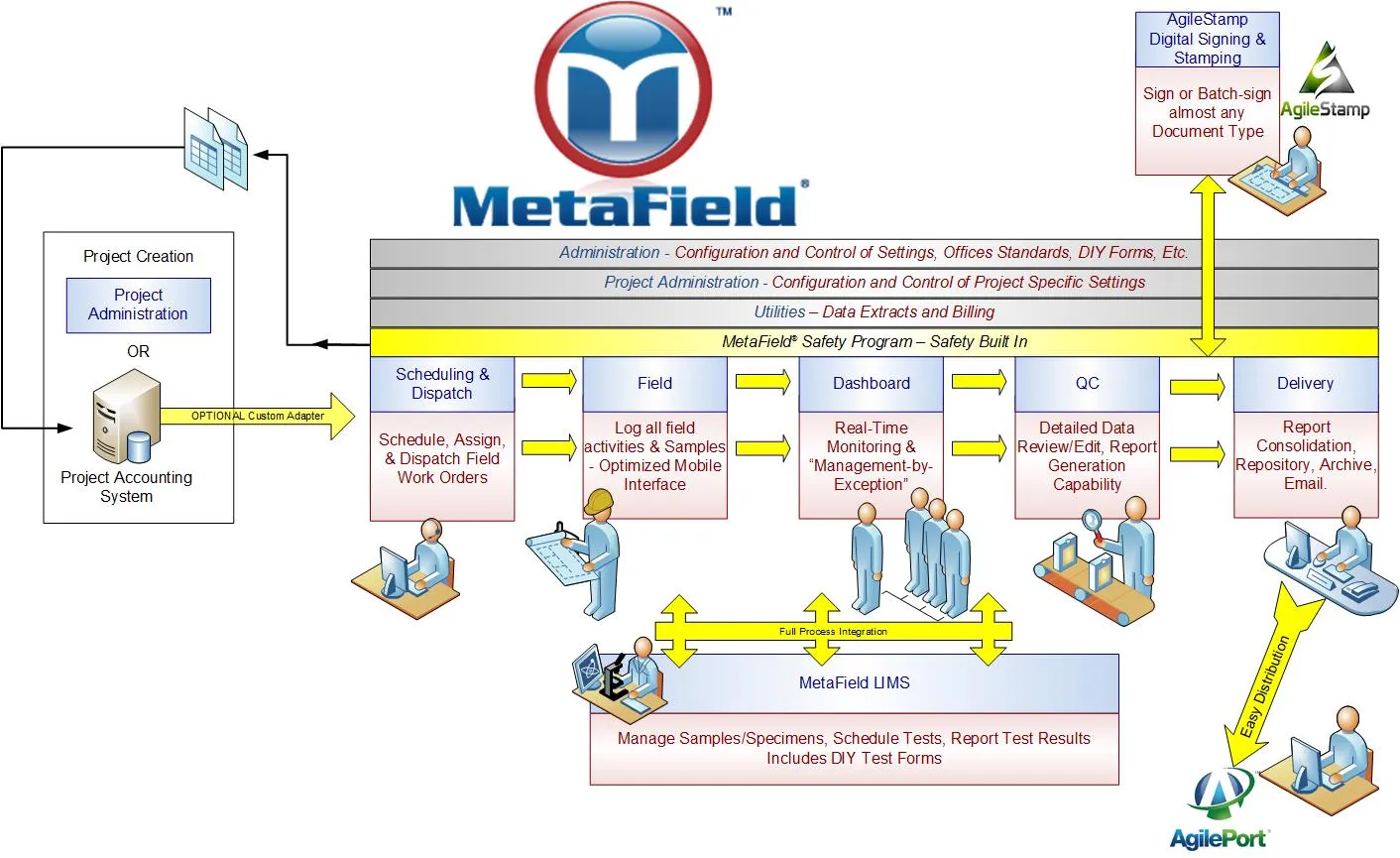
This diagram illustrates the MetaField Software Process and how data flows through the system. MetaField is designed to provide a comprehensive enterprise workflow, moving data from its point of creation, through the appropriate review and lab processes, and ultimately into the hands of your clients as efficiently as possible. While this diagram presents the overall process, each component will be explained in detail in the sections below.
Project Creation
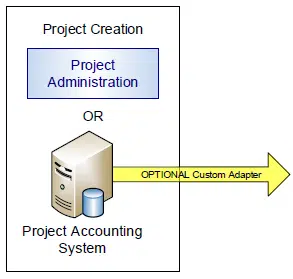
All MetaField data entry is based around projects, so basic project data is needed for all steps within the MetaField process.
Depending on your organization, you may use an enterprise-level project accounting system (for example, Deltek Vision, Deltek Ajera, Microsoft Dynamics AX, or Microsoft Dynamics SL). If you have this type of system and have purchased a custom adapter, projects are initially created in your accounting system, and select project information flows automatically into MetaField.
If you do not have a project accounting system or chose not to purchase a custom adapter, projects are set up directly in the Projects (Project Admin) module of MetaField. Some customers use a hybrid approach with both a custom adapter and Projects access. In this case, it is important to define a clear business process for where and how projects are created.

Admin & Projects
At the top of the process, the grey bars represent system-wide modules of MetaField: Admin and Projects (Project Admin). Admin houses global settings and configurations that affect all modules and workflows, while Projects allows a subset of these settings to be configured at the project level.
Although small on the diagram, these modules form the backbone of the MetaField process. Access should be limited, with granular security used to control who can perform which actions.
Schedule
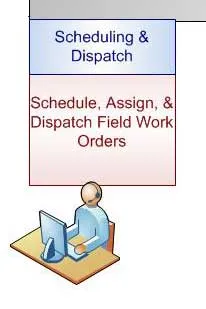
The Schedule (Scheduling & Dispatch) module is an optional starting point for managing work. Schedulers can create work orders, assign technicians, and receive automatic reminders when tasks require action, such as sample pickups or retests. Scheduling can be filtered by office, project, or other criteria, and a built-in dashboard provides a comprehensive view of pending tasks.
Field users see their assigned work orders and can accept them, which automatically routes them to the correct location in MetaField. Completed work orders notify schedulers, keeping the process in sync.
Field
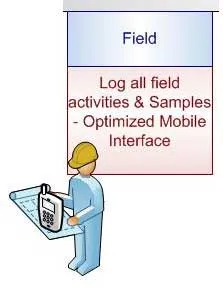
The Field module is optimized for mobile devices such as smartphones and tablets, though it can also be used on desktop. Most data is entered directly in the Field module where it's created, which improves efficiency and minimizes re-entry.
Field users can perform tests, log samples, perform inspections, and carry out other tasks tailored to your business. They can also access project information such as addresses, contacts, and project specifications.
The Field module also highlights important items, including open discrepancies and pending retests. Field users can prepare, digitally sign, and email reports directly from the module, too.
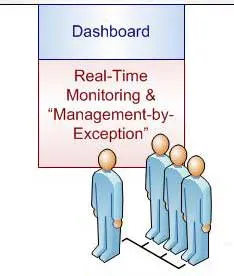
Dashboard
The Dashboard module provides a high-level view of data stored in Review (QC), designed to help project managers quickly see critical items each day. Management by Exception highlights items that need immediate attention, such as failing tests or discrepancies.
Clicking a Dashboard item opens Review (QC) with pre-filtered views. Users can easily switch between Dashboard and Review (QC) to manage tasks efficiently.
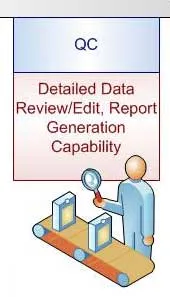
Review (QC)
Once data is entered in the Field module or work is completed in the Lab (LIMS) module, it becomes visible in Review (QC). This module provides extensive filtering and search options to find data quickly. Project managers can review and edit data, generate reports, and route them for review or distribute them via email. Digital signatures, supported through MetaField Mark, can be applied during report creation.
Review (QC) also allows review and approval of field reports generated in the Field module.
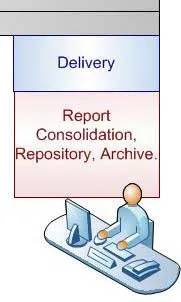
Deliver
Once reports are finalized in Review (QC), they move to the Deliver module, which serves as an internal document repository. Users can search, print, download, email, and digitally sign reports individually or in batch.
Documents created outside MetaField can also be uploaded, and multiple reports can be combined into consolidated reports. Reports may be made public via AgilePort, providing clients with secure access.

Lab (LIMS)
The Lab (LIMS) module manages samples and specimens with a full chain-of-custody process, beginning in the field and tracking each sample throughout its lifecycle. Users can schedule and perform tests, then report results from this area.
Lab (LIMS) is fully integrated with other modules, including Review (QC) and Dashboard, to alert project managers of any required actions or issues. The module also includes its own quality review process to ensure data accuracy.
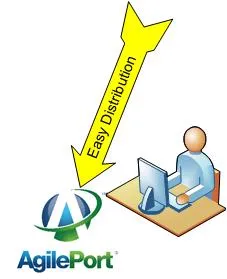
AgilePort
AgilePort is a customizable portal for sharing documents with clients. This portal enables clients to view reports with proper permissions in just a few clicks.
To learn more, see the AgilePort Help articles.
MetaField Mark
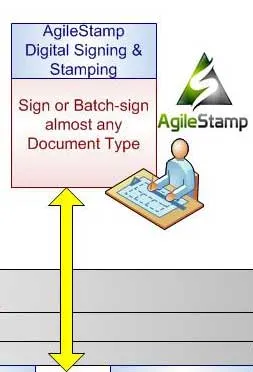
MetaField Mark (formerly AgileStamp) is MetaField’s digital signature solution, integrated across Field, QC, LIMS, and Delivery. It allows reports to be signed digitally without printing. AgileStamp® supports traditional signatures as well as graphics, such as engineering seals, and can also be used outside MetaField on virtually any document.
For more details, see the MetaField Mark Help articles.
Extracts (Utilities)
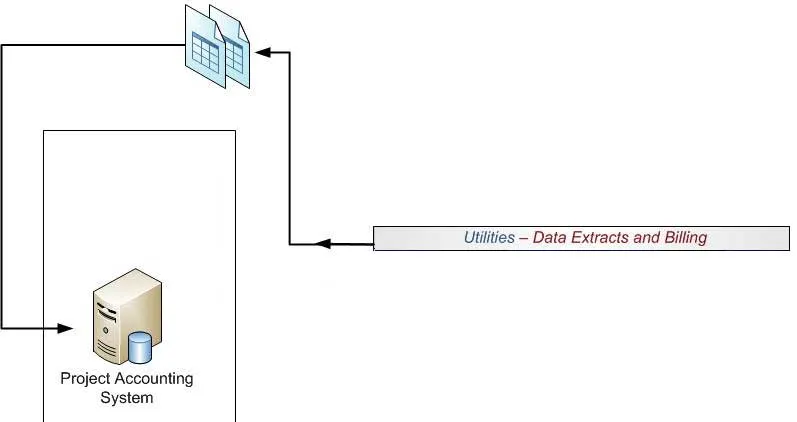
MetaField allows extraction of data into CSV files, via the Extracts (Utilities) module. This standard format enables opening data in spreadsheet software such as Microsoft Excel or importing it back into your project accounting system for billing or analysis.

Safety
The yellow bar in the middle of the diagram represents the MetaField Safety Program. Safety is integrated throughout the system, allowing firms to log and track safety information as part of everyday work.
For more information, see the Safety Help articles.
Want to keep learning?
Click here for more how-to articles and MetaField guides. You can also access in-app guidance using the Help Desk!