Client Reporting Workflow

Who can use this feature?
By default, Review (Quality Control) users
Purpose
In the Review (QC) module, users can draft, review, and sign various client reports – covering what work has been completed in the field and lab.
This article will help you understand and establish a reporting workflow for your firm. Click on the area you’d like to learn about for more:
Draft Reports
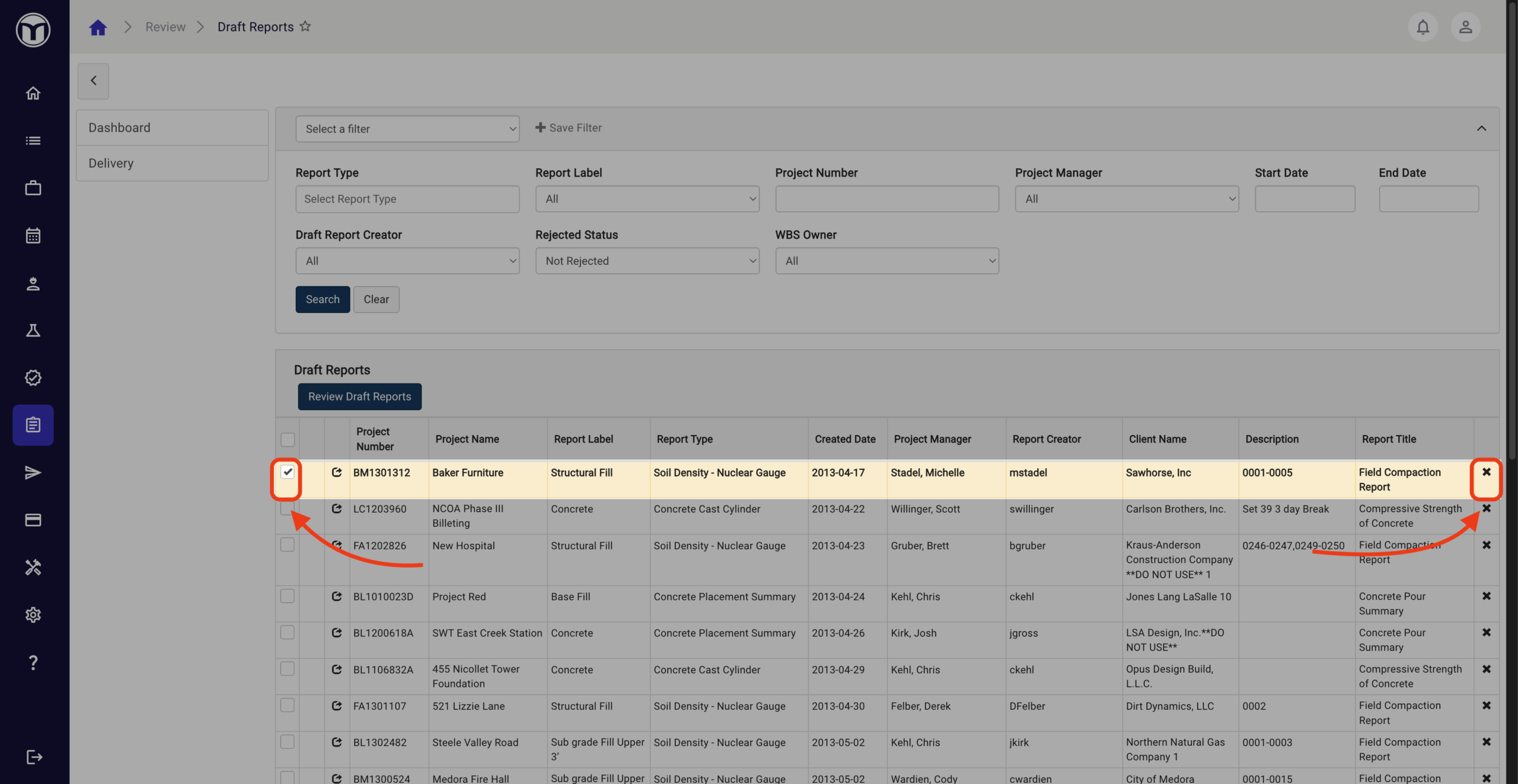
The Draft Reports page allows you to review and sign client reports created across the Review (QC) module (e.g., Density Testing, Sampling, Evaluation, etc.).

Available actions:
- Search for draft reports across Review (QC)
- Review draft reports and finalize them for client submission
- Reject or delete draft reports
Reviewing a Report: What to Expect
- Select the report(s), then press Review Draft Reports
- Review and adjust reports, using the Next and Previous buttons to navigate between them
- Press Reject or Finalize All to reject or finalize the reports

Rejecting Reports
When you reject a report, you’ll have the option to add a comment to the report. This comment is for internal communication - and only displays when reviewing the draft report.
Finalizing Reports
You have a few options when finalizing a draft report, including whether to digitally sign or publish it:
- Digitally Sign Report: Add a digital signature to the report
- Publish: Publish the report on AgilePort
- Finalize Report: Move the approved report to the Deliver module for client delivery
- Finalize Report & Email: Move the approved report to the Deliver module – and email to specified contact(s)
Managing Draft Reports
You can use the following buttons to perform quick actions on draft reports:
- Delete (X): Deletes the report
- View Project in Review (
): Opens project the report is assigned to
Field Reports
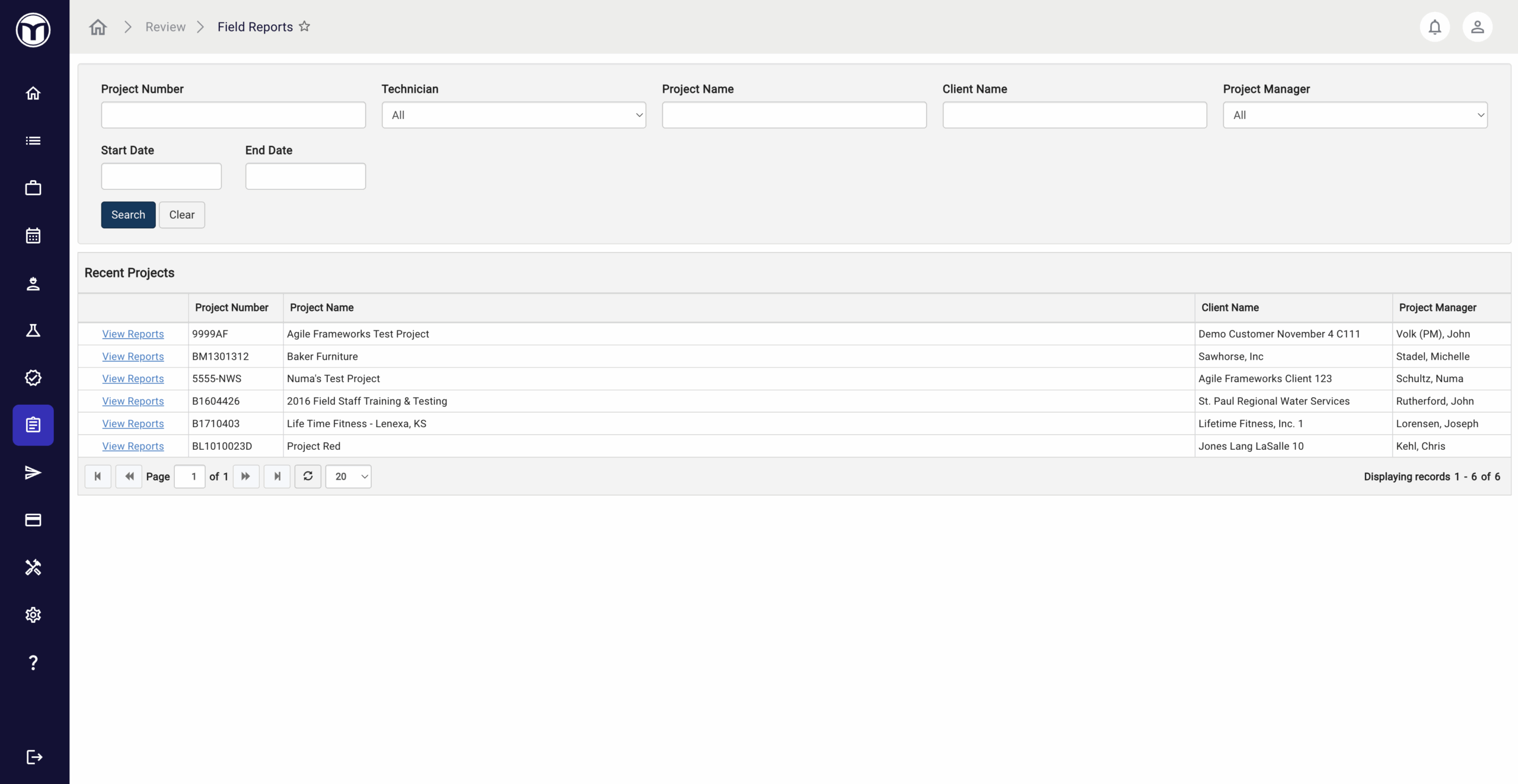
The Field Reports page lets you view and manage field reports submitted to a project. (E.g., daily activity reports, concrete density reports, etc.)
Available actions:
- Review submitted field reports
- Draft or finalize field reports
- Email field reports
Reviewing Field Reports: What to Expect
- Find your project using search filters – then press View Reports
- Select the report, then press Preview/Create/Finalize Report
- Preview Report: View a downloadable PDF preview of selected reports
- Create Draft Report: Enter details and save selected reports as a draft
- Finalize Report: Enter details and finalize the reports, moving them to the Deliver module.

Finalizing Reports (All Areas)
The process of finalizing a report is generally the same across all areas of Review (QC). Simply enter the required details, then press Finalize Report or Finalize Report & Email.
Once finalized, reports will move to the Deliver module, where they can be managed, signed, and sent to client contacts.

Want to keep learning?
Click here for more how-to articles and MetaField guides. You can also access in-app guidance using the Help Desk!