Overview - Review (Quality Control)

Who can use this feature?
By default, users with Review (QC) role permissions.
Purpose
Review (QC) helps you manage activities, tests, samples, and reports created in MetaField. This module allows project managers to quickly:
- Access activities, samples, tests, and reports created by technicians in the Field module
- View lab results for samples tested in the lab

Review (QC) Areas
Review (QC) is split into various areas, based on activities and reports in the system that need review. Click any of the areas below for more details:
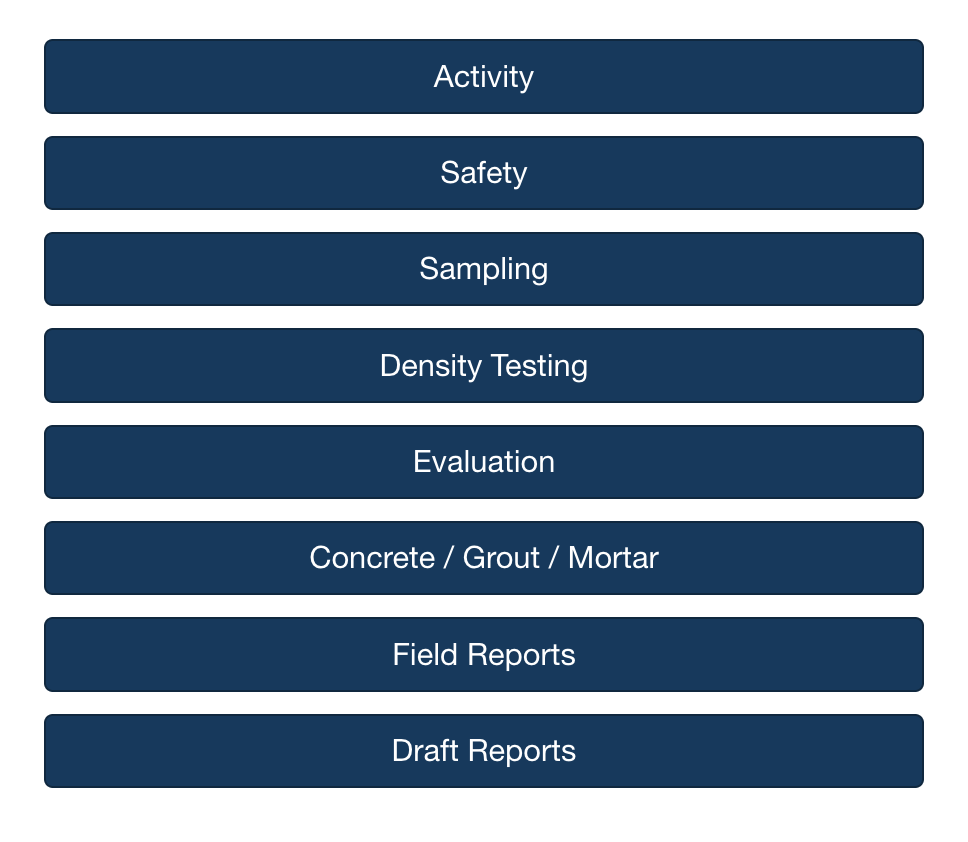
Activity
Search, review, add, and edit activity forms for a project. You can also create discrepancy reports here, as well as preview and create PDF reports on selected Activity forms.
Safety
Review, alter, and add safety forms tied to a selected project. You can also create and finalize PDF reports of these safety records here.
Sampling
Review field samples and the lab tests associated with them. You can also preview and finalize PDF reports on project samples here.
Density Testing
Review and edit density tests for a project. Simply search or select a project for a breakdown of its tests, organized by type (Soil Nuclear Gauge, Sand Cone, One-Point, etc.). You can also draft, preview, and download PDF reports of selected density tests here.
Evaluation
Review and add evaluation records that support accreditation records for your projects. Evaluation records can also be edited or finalized into PDF reports here.
Concrete/Grout/Mortar
Review Concrete/Grout/Mortar (C/G/M) samples and their specimens for review purposes. You can also edit sample data and prepare reports on C/G/M samples here.
Field Reports
Review and finalize submitted field reports. These reports are originally created by technicians in the Field Reports section of Field, then pass here for review. (Field reports can also be set to bypass Review using the "Send Field Reports To" setting on the Report Type record.)
Draft Reports
Review and sign reports drafted in the other areas of Review (e.g., Activity or Safety). Think of it as a repository for all draft reports built in Review.
To finalize a draft report, select its checkbox and click Review Draft Reports. (You can select and finalize multiple reports at once.) A viewing window will open, allowing you to review each report and reject or finalize it. Reports finalized here in Review will be moved to the Deliver module, where they can be submitted to clients.
Common Buttons & Controls in Review (QC)
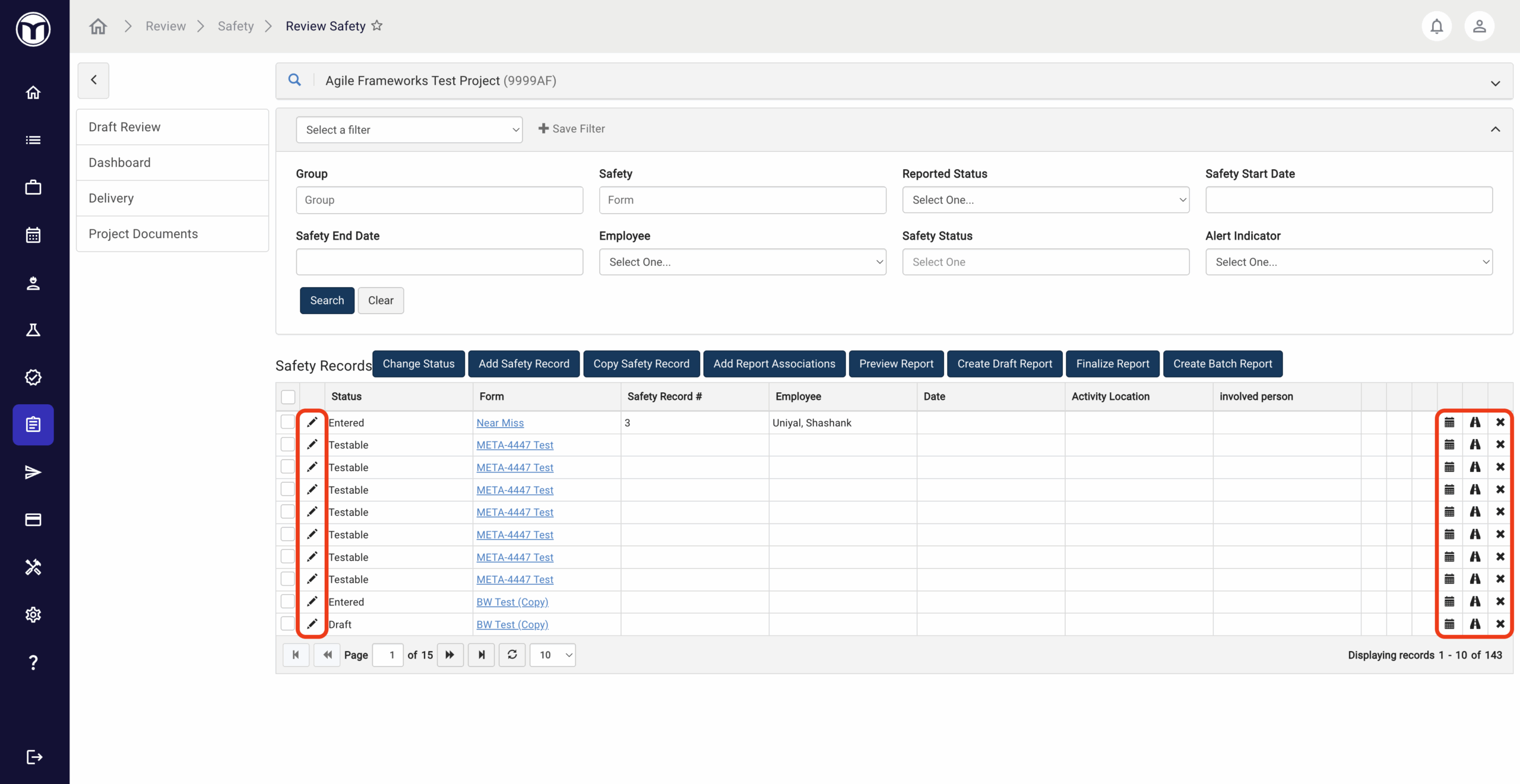
Many parts of Review share common controls and actions. Here's an overview of some key buttons you'll use across the module:
 | Edit: Open the record for editing. |
 | History: View when the record was created and last modified (and by whom). |
 | Work Item Associations: View or add associated work items to selected record. |
 | Delete: Delete the record. |
 | Sent Email: View sent email for the record, including who sent it and when. |
 | View Record: Open PDF view of the record for you to review, print, download, etc. |
 | Reported on Details: View reported details for the report (title, type, labels, description, etc.). |
 | Related Costs: View the relationship a cost transaction has with related field activities. |
 | View Lab Instructions: Show lab instructions and comments for the record, if available. |
Finalizing Reports in Review
Review allows you to quickly review and finalize reports for clients. This process is consistent across all areas of Review, but requires you to have the right settings and user permissions enabled. Learn more about the Client Reporting Workflow.
Want to keep learning?
Click here for more how-to articles and MetaField guides. You can also access in-app guidance using the Help Desk!