Help Article
Activity

Who can use this feature?
By default, users with Admin - Activity permissions
Purpose
The Admin → Activity section lets you configure your Activity Forms, reports, text libraries, and grid results in MetaField. This area is highly customizable, allowing you to build forms tailored to your business needs.

Some Admin → Activity pages allow you to add or edit individual records (such as Activity Forms, area fields, etc.). Each record has a set of buttons in its row, which you can use to perform quick actions on it:

- View record history (📅)
- Activate or deactivate the record (▶️/◼️)
- Copy the record (📂📄)
- Move the record (✂️)
- Edit the record (✏️)
- Reassign the record (🔧)
- Delete the record (✖️)
-----------------
Click any area below for additional info:
- Forms: Create Groups and Forms for use in Field > Activity
- Search / Results Display: Customize search & results fields shown in Field > Activity
- Text Library: Add and assign pre-made text blocks to Activity entries
- Activity Administration: Delete, restore, or move Activity records between projects
Forms
The Forms page lets you add and organize Activity Forms used in the Field module. You can also create Groups to help organize your forms.
- To create a new Form/Group, press the Add button
- To move a Form to a Group: Press the Move to Group button
- Click on a Group name to display its forms in the Activity Forms table below
For more information on the Forms Engine, click here.
Search / Results Display
Activity forms appear across many areas of MetaField, from filters in the Review module to search results in Field. The Search / Results Display page allows you to tweak these areas to decide which Activity fields users can search by, and what is returned in their search results.
To adjust the search and results display for an area, simply select its name in the Area table. This will open the Area Fields table below, where you can decide which fields will be displayed in that area, and in what order.
In the example below, we’ve selected the QC Activity Search Filter. Doing so expands the Area Fields table, where we can edit fields, reorder them, or add new fields with the Add Field button.
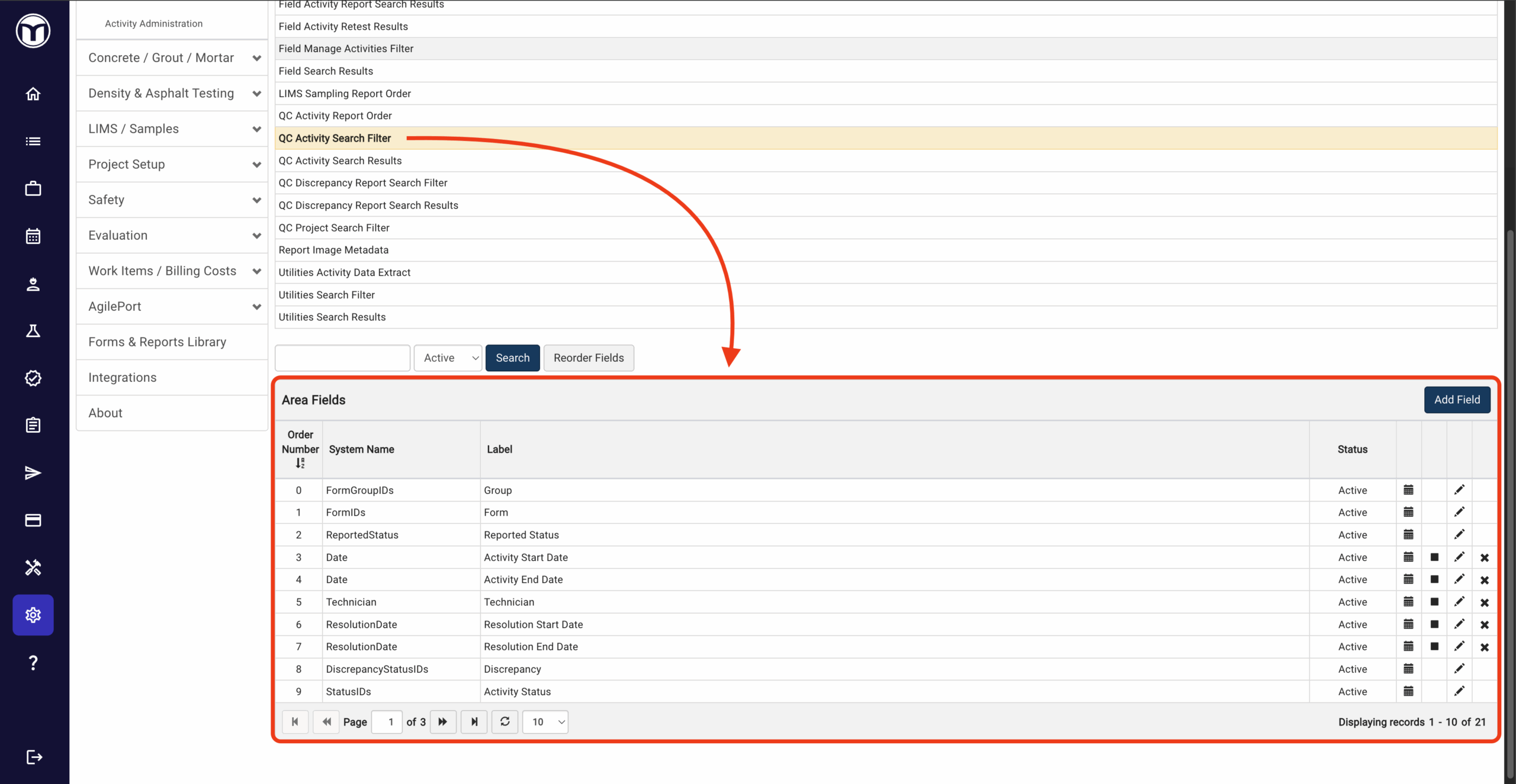
Once saved, these changes will be reflected in the QC Activity Search Filter (pictured below).

Here is a list of all Display Areas you can edit by default:
| Daily Field Report | Controls which fields display on the Daily Field Report. |
| Daily Field Report Closed Discrepancies | Controls which fields display in the Closed Discrepancies section of the Daily Field Report. |
| Discrepancy Report | Defines the fields available when building a Discrepancy Report. Only form-level, section, or primary data grid fields are supported. |
| Field Activity Daily Field Report Filter | Configures the technician and date fields used to select Activity records for the Daily Field Report. |
| Field Activity Daily Field Report Results | Determines which fields display when selecting Activity records to include on a Daily Field Report. |
| Field Activity Report Search Filter | Defines the fields available to search for Activity records when creating an Activity Report in Field. |
| Field Activity Report Search Results | Controls which fields display when choosing Activities to add to an Activity Report in Field. |
| Field Activity Retest Results | Determines which fields display when selecting Activities for density retests in Field. |
| Field Manage Activities Filter | Defines the fields available to filter Activity records after selecting Manage Activities in Field. |
| Field Search Results | Controls which fields display after filtering Activity records in Field to help users choose the correct Activity. |
| LIMS Sampling Report Order | Controls the display order of sampling records in Lab (LIMS) reports |
| QC Activity Report Order | Controls field display when setting the order of Activities in a Quality Control report. |
| QC Activity Search Filter | Defines the fields available when searching for Activities within Quality Control > Activity. |
| QC Activity Search Results | Controls which columns display when viewing Activity records in Quality Control > Activity. |
| QC Discrepancy Report Search Filter | Defines the fields available to search for discrepancies after opening the Discrepancy Report in Quality Control. |
| QC Discrepancy Report Search Results | Controls which columns display when viewing discrepancies in the Discrepancy Report within Quality Control. |
| QC Project Search Filter | Defines the fields available when searching for projects in Quality Control > Activity. |
| Report Image Metadata | Defines the fields displayed alongside images attached to the Daily Field Report or Discrepancy Report. |
| Utilities Activity Data Extract | Controls which fields display in the Activity Data Extract within Utilities. |
| Utilities Search Filter | Defines the fields available to search for Activity records in the Activity Data Extract within Utilities. |
| Utilities Search Results | Controls which columns display for Activity records in the Activity Data Extract within Utilities. |
Text Library
In many Activity forms, users re-enter the same boilerplate text each time they create a record. Text Libraries streamline this by letting you define reusable text and assign it to specific form fields, saving time while keeping entries and reports consistent.
On the Text Library page, you can create and manage these libraries, such as office-specific messages used across Activity forms. The page is organized into three tables. For more info on Text Libraries, click here.
Activity Administration
Activity Administration is used to manage your Activity records. From this page you can:
1. Permanently delete Activity records
To permanently delete (or 'hard delete') an Activity record, press the Delete button next to it. Records must first be soft-deleted in the Review module before they can be hard-deleted in Activity Administration.
2. Restore Activity records accidentally deleted in Review
You can quickly restore soft-deleted records using the Activate button. This will reinstate the Activity record in the Review module.
3. Move Activity records between projects
If an Activity record was logged against the wrong project, you can move it to another project. To perform a move, select the record(s) you want and press the Move button, then input a project number and press OK. Once moved, the record will be accessible within the chosen project.
Want to keep learning?
Click here for more how-to articles and MetaField guides. You can also access in-app guidance using the Help Desk!