Help Article
Lab Test Assignments

Purpose
The Lab Test Assignments page gives your lab team a centralized view for tracking test progress and managing test assignments across your boring log samples. Instead of navigating between records individually, you can filter, assign, and manage tests across multiple samples in one place to keep your lab workflow moving efficiently.

Who Is This For
This page is available to customers using MetaField's Boring Log solution with access to the Lab module. It is currently scoped to boring log samples, with additional form and material types coming in a future update.
Finding and Filtering Your Samples
Use the filter area at the top of the page to narrow results by project, sample number, status, or boring-specific criteria like material, blows per unit, and recovery.

Once filtered, results appear across three tabs:
- Samples — your active samples available for test assignment
- Retained — samples set aside for future testing
- Tests — this tab is not yet available, but is coming soon

Assigning and Managing Tests
Once you've filtered your results, select one or more samples to reveal the action bar at the bottom of the page. From here you can:
- Bulk assign tests or assign test groups
- Bulk move samples to Retained
- Change labs across multiple samples in one step

You can also use the Tests Assigned column to add and manage tests. The highlighted color on each record reflects the current status of its assigned tests:
- Yellow indicates one or more rush tests
- Blue indicates incomplete tests with no rush
- Green indicates all tests are complete
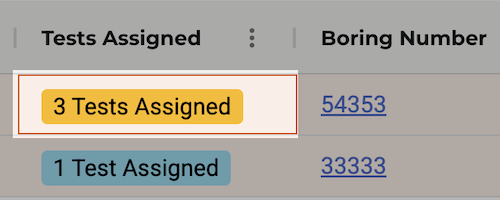
Tap this colored text to manage or assign sample tests. This screen will allow you to review the status of each test, navigate to enter test results, or Mark as Rush.

Navigating Sample Records
Sample numbers on this page are hyperlinks: tap any one to navigate directly into that sample's boring log. Boring Log numbers link to the associated field activity record. Samples moved to the Retained tab can be moved back to Samples at any time if needed.

Once tests are complete, you can also click into individual test results directly from this page.

Customizing Your View
Your column layout is fully customizable. Use the three-dot menu beside any column header to add, remove, reorder, or sort columns — and configure the page to match the way your team works best.

Want to keep learning?
Click here for more how-to articles and MetaField guides. You can also access in-app guidance using the Help Desk!